Timelapse Sculpt




🎬 TIMELAPSE SCULPT — Turn Your ZBrush History Into Animation
Version 1.0
Ever wanted to show the full journey of your sculpt from base mesh to final piece as a beautiful timelapse animation? Timelapse Sculpt automates the entire process. Export your ZBrush history in one click, import it into your renderer, and watch your sculpt come to life frame by frame.
──────────────────────────────────────────
WHAT'S INCLUDED
──────────────────────────────────────────
• ZBrush Plugin — Exports your full sculpt history as numbered OBJ files
• Marmoset Toolbag Script — Imports and keyframes as stop motion, ready to render
• Blender Addon (All-in-One) — Three tools in one panel:
1. Stop Motion Importer with material picker
(assign one shared material to all meshes -
pick existing or create new)
2. Batch Decimator - reduce the polygon count of
a whole folder of OBJs at once. Great for heavy
sculpts so the timeline plays back smoothly.
3. UV Projection - apply UVs to a whole folder of
OBJs at once. Choose from 9 projection methods:
- View-based: Front, Back, Top, Bottom, Left, Right
- Smart UV Project (auto-detects seams)
- Sphere (great for heads and busts)
- Cylinder (great for full characters)
Run multiple methods on the same folder to compare.
• Maya Script — For Maya users, drag-and-drop shelf button setup
All importers automatically place the sequence inside a clean GROUP / COLLECTION so your viewport stays organized and easy to manage.
──────────────────────────────────────────
HOW TO INSTALL
──────────────────────────────────────────
ZBrush Plugin:
1. Copy TimelapseSculpt_ZBrush.txt to your ZBrush ZPlugs64 folder:
For ZBrush 2025 and older:
[ZBrush]\ZStartup\ZPlugs64\
Common locations:
C:\Program Files\Maxon ZBrush 2025\ZStartup\ZPlugs64\
E:\Program Files\Maxon ZBrush 2025\ZStartup\ZPlugs64\
For ZBrush 2026+:
[ZBrush]\ZData\ZPlugs64\
Common location:
C:\Program Files\Maxon ZBrush 2026\ZData\ZPlugs64\
2. Open ZBrush and go to ZScript > Load
3. Navigate to the ZPlugs64 folder and load TimelapseSculpt_ZBrush.txt
4. ZBrush automatically compiles a .zsc file there - permanently installed
5. Restart ZBrush - find the plugin under ZPlugin > Timelapse Sculpt
Marmoset Toolbag:
1. Edit > Plugins > Show User Plugin Folder
2. Copy TimelapseSculpt_Marmoset.py into that folder
3. Edit > Plugins > Refresh
4. Run from the plugins menu
Blender:
1. Edit > Preferences > Add-ons > Install
2. Select TimelapseSculpt_Blender.py
3. Enable "Timelapse Sculpt" in the addon list
4. Find panel in 3D Viewport > Sidebar (N key) > Timelapse Sculpt tab
Maya:
1. Open Script Editor > Python tab
2. Paste TimelapseSculpt_Maya.py and click Run
3. Optional: File > Save Script to Shelf for permanent button
──────────────────────────────────────────
HOW TO USE
──────────────────────────────────────────
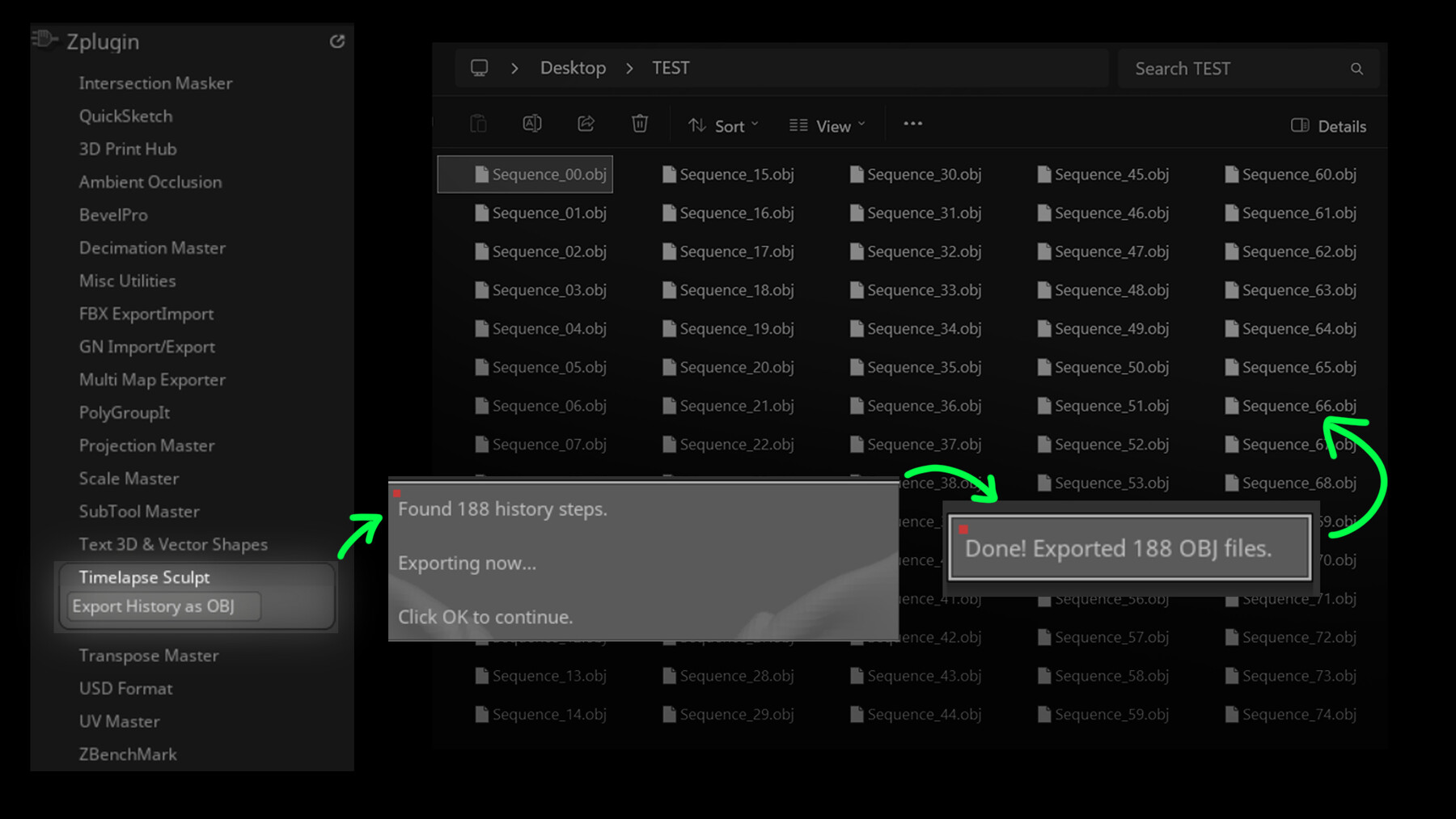
Step 1 — Export from ZBrush:
1. Sculpt in ZBrush as you normally would (Undo History must be enabled)
2. Select your SubTool
3. Go to ZPlugin > Timelapse Sculpt
4. Click "Export History as OBJ"
5. In the Save dialog, navigate to your folder and name the first file
(e.g. Sequence_00.obj) then click Save
6. All history steps export automatically with incremented filenames
Step 2 — Import into your renderer:
Marmoset: Click Browse > select your OBJ folder > set speed > Import and Keyframe
Blender: Sidebar (N key) > Timelapse Sculpt > set folder > optionally pick an
existing material from the dropdown (or click + to create a new one)
> Import and Keyframe
Maya: Run script > Browse > set speed > Import and Keyframe
OPTIONAL Step (recommended for heavy sculpts) — Decimate first:
In Blender, the addon also includes a Batch Decimator panel.
1. Open a fresh empty scene
2. Set the folder of OBJs you want to decimate
3. Set the ratio (0.2 = 20% of original polys = much lighter)
4. Click "Decimate Folder" - new files appear in [folder]_decimated/
5. Use that decimated folder in the importer for faster playback
OPTIONAL Step — UV Projection (for textures and shaders):
In Blender, the addon also includes a UV Projection panel with 9 methods.
1. Open a fresh empty scene
2. Set the folder of OBJs you want to UV map
3. Pick a Method from the dropdown:
- View-based: Front, Back, Top, Bottom, Left, Right
- Smart UV Project (auto-detects seams - best for organic sculpts)
- Sphere (perfect for heads, busts)
- Cylinder (perfect for full characters)
4. Click "UV Project Folder" - new files appear in [folder]_uvmapped_[method]/
5. Use that UV-mapped folder in the importer with a textured material
6. Run different methods on the same source to compare results
Step 3 — Render:
All meshes are organized in a "TimelapseSculpt_Group". Press Play to preview,
then render your timelapse animation as normal.
──────────────────────────────────────────
COMPATIBLE SOFTWARE
──────────────────────────────────────────
ZBrush:
2021, 2022, 2023, 2024, 2025, 2026+
Marmoset Toolbag:
5.0, 5.01, 5.02+
Blender:
2.83
2.90, 2.91, 2.92, 2.93
3.0, 3.1, 3.2, 3.3, 3.4, 3.5, 3.6
4.0, 4.1, 4.2+
5.0+
Maya:
2018, 2019, 2020, 2022, 2023, 2024, 2025, 2026+
Python 2.7 and 3.x supported automatically
Operating System:
Windows 10, Windows 11
──────────────────────────────────────────
IMPORTANT NOTES
──────────────────────────────────────────
⚠ KEEP YOUR MESH LIGHT
Make sure your mesh is not too heavy on polygon count. Each history step
is exported as a separate OBJ file - heavy meshes will create huge file
sizes and slow down both ZBrush exports and your renderer's import.
⚠ AVOID VERY LONG HISTORIES
Splitting your sculpt into multiple shorter histories will give you
cleaner results. For long sculpting sessions:
- Export the early blocking phase as one sequence
- Export the detailing phase as another sequence
- Combine them in your renderer or video editor afterwards
This keeps file counts manageable and your timeline clean.
⚠ ZBRUSH HISTORY MUST BE ENABLED
ZBrush's Undo History must be ON when sculpting. Check Preferences > Undo
History to confirm settings. Without this, there will be no history steps
to export.
⚠ POLYGROUPS WARNING
If your SubTool has PolyGroups, the OBJ files will export with each group
as a separate object - which can cause issues during import.
To avoid this, do ONE of the following before exporting:
- Set the entire SubTool to a single PolyGroup color, OR
- Turn OFF GRP export in: Preferences > ImportExport > Export > GRP
──────────────────────────────────────────
Created by Rakan Khamash.
Built with the help of AI-generated code.
If you have any questions or issues, feel free to reach out.
Follow me for more:
ArtStation: https://www.artstation.com/rakan
Instagram: https://www.instagram.com/rakankh_cg/
🎬 TIMELAPSE SCULPT , Turn Your ZBrush History Into Animation
Version 1.0
Ever wanted to show the full journey of your sculpt from base mesh to final piece as a beautiful timelapse animation? Timelapse Sculpt automates the entire process. Export your ZBrush history in one click, import it into your renderer, and watch your sculpt come to life frame by frame.
──────────────────────────────────────────
WHAT'S INCLUDED
──────────────────────────────────────────
• ZBrush Plugin - Exports your full sculpt history as numbered OBJ files
• Marmoset Toolbag Script - Imports and keyframes as stop motion, ready to render
• Blender Addon (All-in-One) - Three tools in one panel:
1. Stop Motion Importer with material picker
(assign one shared material to all meshes -
pick existing or create new)
2. Batch Decimator - reduce the polygon count of
a whole folder of OBJs at once. Great for heavy
sculpts so the timeline plays back smoothly.
3. UV Projection - apply UVs to a whole folder of
OBJs at once. Choose from 9 projection methods:
- View-based: Front, Back, Top, Bottom, Left, Right
- Smart UV Project (auto-detects seams)
- Sphere (great for heads and busts)
- Cylinder (great for full characters)
Run multiple methods on the same folder to compare.
• Maya Script - For Maya users, drag-and-drop shelf button setup
All importers automatically place the sequence inside a clean GROUP / COLLECTION so your viewport stays organized and easy to manage.
──────────────────────────────────────────
HOW TO INSTALL
──────────────────────────────────────────
ZBrush Plugin:
1. Copy TimelapseSculpt_ZBrush.txt to your ZBrush ZPlugs64 folder:
For ZBrush 2025 and older:
[ZBrush]\ZStartup\ZPlugs64\
Common locations:
C:\Program Files\Maxon ZBrush 2025\ZStartup\ZPlugs64\
E:\Program Files\Maxon ZBrush 2025\ZStartup\ZPlugs64\
For ZBrush 2026+:
[ZBrush]\ZData\ZPlugs64\
Common location:
C:\Program Files\Maxon ZBrush 2026\ZData\ZPlugs64\
2. Open ZBrush and go to ZScript > Load
3. Navigate to the ZPlugs64 folder and load TimelapseSculpt_ZBrush.txt
4. ZBrush automatically compiles a .zsc file there - permanently installed
5. Restart ZBrush - find the plugin under ZPlugin > Timelapse Sculpt
Marmoset Toolbag:
1. Edit > Plugins > Show User Plugin Folder
2. Copy TimelapseSculpt_Marmoset.py into that folder
3. Edit > Plugins > Refresh
4. Run from the plugins menu
Blender:
1. Edit > Preferences > Add-ons > Install
2. Select TimelapseSculpt_Blender.py
3. Enable "Timelapse Sculpt" in the addon list
4. Find panel in 3D Viewport > Sidebar (N key) > Timelapse Sculpt tab
Maya:
1. Open Script Editor > Python tab
2. Paste TimelapseSculpt_Maya.py and click Run
3. Optional: File > Save Script to Shelf for permanent button
──────────────────────────────────────────
HOW TO USE
──────────────────────────────────────────
Step 1 - Export from ZBrush:
1. Sculpt in ZBrush as you normally would (Undo History must be enabled)
2. Select your SubTool
3. Go to ZPlugin > Timelapse Sculpt
4. Click "Export History as OBJ"
5. In the Save dialog, navigate to your folder and name the first file
(e.g. Sequence_00.obj) then click Save
6. All history steps export automatically with incremented filenames
Step 2 - Import into your renderer:
Marmoset: Click Browse > select your OBJ folder > set speed > Import and Keyframe
Blender: Sidebar (N key) > Timelapse Sculpt > set folder > optionally pick an
existing material from the dropdown (or click + to create a new one)
> Import and Keyframe
Maya: Run script > Browse > set speed > Import and Keyframe
OPTIONAL Step (recommended for heavy sculpts) — Decimate first:
In Blender, the addon also includes a Batch Decimator panel.
1. Open a fresh empty scene
2. Set the folder of OBJs you want to decimate
3. Set the ratio (0.2 = 20% of original polys = much lighter)
4. Click "Decimate Folder" - new files appear in [folder]_decimated/
5. Use that decimated folder in the importer for faster playback
OPTIONAL Step - UV Projection (for textures and shaders):
In Blender, the addon also includes a UV Projection panel with 9 methods.
1. Open a fresh empty scene
2. Set the folder of OBJs you want to UV map
3. Pick a Method from the dropdown:
- View-based: Front, Back, Top, Bottom, Left, Right
- Smart UV Project (auto-detects seams - best for organic sculpts)
- Sphere (perfect for heads, busts)
- Cylinder (perfect for full characters)
4. Click "UV Project Folder" - new files appear in [folder]_uvmapped_[method]/
5. Use that UV-mapped folder in the importer with a textured material
6. Run different methods on the same source to compare results
Step 3 - Render:
All meshes are organized in a "TimelapseSculpt_Group". Press Play to preview,
then render your timelapse animation as normal.
──────────────────────────────────────────
COMPATIBLE SOFTWARE
──────────────────────────────────────────
ZBrush:
2021, 2022, 2023, 2024, 2025, 2026+
Marmoset Toolbag:
5.0, 5.01, 5.02+
Blender:
2.83
2.90, 2.91, 2.92, 2.93
3.0, 3.1, 3.2, 3.3, 3.4, 3.5, 3.6
4.0, 4.1, 4.2+
5.0+
Maya:
2018, 2019, 2020, 2022, 2023, 2024, 2025, 2026+
Python 2.7 and 3.x supported automatically
Operating System:
Windows 10, Windows 11
──────────────────────────────────────────
IMPORTANT NOTES
──────────────────────────────────────────
⚠ KEEP YOUR MESH LIGHT
Make sure your mesh is not too heavy on polygon count. Each history step
is exported as a separate OBJ file - heavy meshes will create huge file
sizes and slow down both ZBrush exports and your renderer's import.
⚠ AVOID VERY LONG HISTORIES
Splitting your sculpt into multiple shorter histories will give you
cleaner results. For long sculpting sessions:
- Export the early blocking phase as one sequence
- Export the detailing phase as another sequence
- Combine them in your renderer or video editor afterwards
This keeps file counts manageable and your timeline clean.
⚠ ZBRUSH HISTORY MUST BE ENABLED
ZBrush's Undo History must be ON when sculpting. Check Preferences > Undo
History to confirm settings. Without this, there will be no history steps
to export.
⚠ POLYGROUPS WARNING
If your SubTool has PolyGroups, the OBJ files will export with each group
as a separate object - which can cause issues during import.
To avoid this, do ONE of the following before exporting:
- Set the entire SubTool to a single PolyGroup color, OR
- Turn OFF GRP export in: Preferences > ImportExport > Export > GRP
──────────────────────────────────────────
Created by Rakan Khamash.
Built with the help of AI-generated code.
If you have any questions or issues, feel free to reach out.
Follow me for more:
ArtStation: https://www.artstation.com/rakan
Instagram: https://www.instagram.com/rakankh_cg/